

iPhone only
On one phone you pick the event, start the recording, let the video process, play it back for guests and send it on right away. It's the simplest setup when someone is staffing the platform.
Mount your iPhone on your 360° platform and let FibiBooth360 record, process and play back the finished clip. No second computer beside the platform, and no lock-in to a single manufacturer.
An iPhone is enough. Add an iPad and guests run the whole recording themselves.
Exactly as the guest gets it after processing in FibiBooth360 — no extra editing.
FibiBooth360 works on an iPhone by itself. Add an iPad and the camera stays separate from the screen guests touch, which makes for a calmer shift for the operator.
On one phone you pick the event, start the recording, let the video process, play it back for guests and send it on right away. It's the simplest setup when someone is staffing the platform.
Guests start the recording themselves on the iPad. The iPhone stays safely mounted on the platform's arm, records the video and sends it back to the iPad once it's processed.
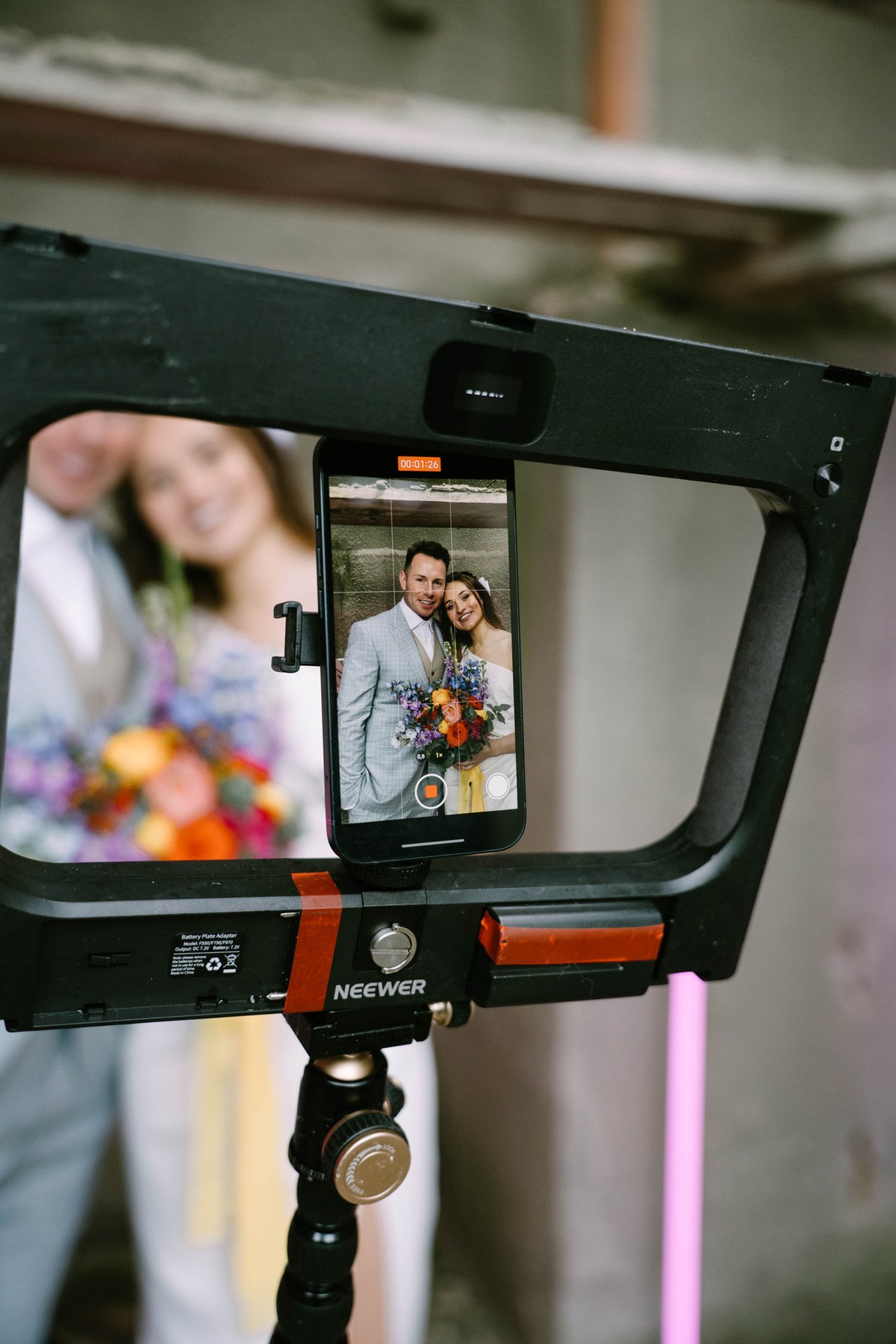

FibiBooth360 doesn't tie you to one platform manufacturer. All it needs is a safe rig that holds a compatible iPhone in the right position.
In the recommended setup, the guest watches the iPad while the iPhone stays where it films best.
Your own text, logo, photo or looping video gets the guest ready to record.
Write the data-processing consent step yourself, or switch it off.
3, 5 or 10 seconds, with numbers or a circular animation.
The iPhone records for the length you set, 5 to 60 seconds of motion around your guests.
The app adds the speed effect, music, frame and logo.
The finished video plays on the iPad, and after the delay you set, the booth is ready for the next guest.
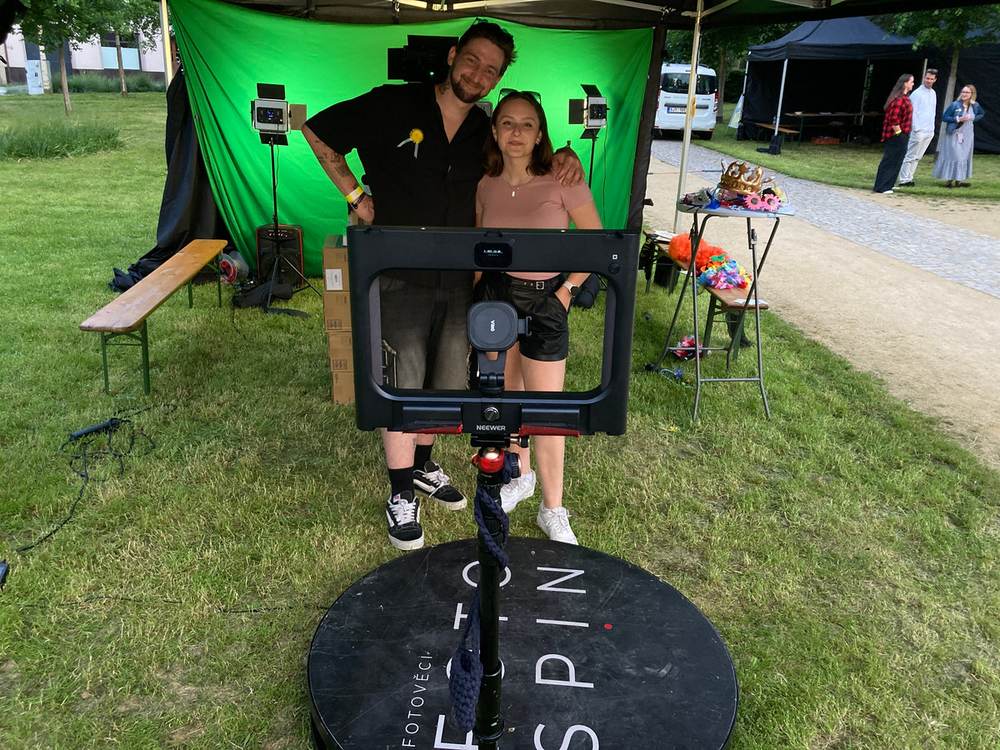
Speed effects are created during processing, once the recording is done, so one physical platform gives you an elegant slow-motion piece or a fast party clip.
Paid access removes the FibiBooth360 watermark. After that, the only graphics over the video are the ones you prepared for the event.
Lay a transparent image over the whole video so the picture underneath stays visible.
Drop the logo into one of five positions and set its opacity.
Set colours separately for the iPhone, the iPad and the on-device gallery.
Text, a logo, a background image or a looping intro video.
Adjust the data-processing consent text to suit the organiser, or turn it off for an event.
The app writes your uploaded track into the finished file, so it still plays after the video reaches the guest.

Every finished video is saved on the device itself, in a gallery organised by event. You can hand one to a guest even when there's no way to reach the cloud.
Set an event up on the web, then use it on a Windows photo booth and on every signed-in iPhone. Settings and graphics download to the device, so you have them on site too.
Prepare recording, effects, sharing, graphics and music in peace at your computer.
Every signed-in iPhone that records pulls down the same event, graphics included.
An unfinished video survives closing the app and uploads itself as soon as there's signal again.
Windows photos and iPhone videos together under one event, for the operator and for guests.
Publish the guest gallery, and the QR code, text message and e-mail all lead to it. Otherwise the guest gets a private link to their own video.
Once downloaded, the settings stay on the device, so you keep recording with no internet at all.
FibiBooth360 is built for an ordinary professional 360° setup with no computer. The recording quality itself depends on the iPhone, the lighting and the platform's own mechanics.
The iPhone is the camera, the computer and the storage in one. Lenses and stabilisation vary by model.
From any manufacturer you like. It just has to hold the iPhone securely, and the platform has to run without being controlled by the app.
With iPadOS 16 or newer. The guest gets their own screen and the iPhone can stay mounted on the platform's arm.
The iPhone and iPad talk to each other directly over a secure connection, so iOS has to let them communicate on the local network.
Recording, processing, the on-device gallery and AirDrop all work without signal. Guest links appear once the video uploads to the cloud.
Where the lens can do it, the app records at the high frame rate. Everywhere else it falls back to standard capture automatically.
Download FibiBooth360 from the App Store and try the full recording flow on your iPhone. The FibiBooth360 plan removes the video watermark, includes two camera devices and shared web management. Windows remains watermarked; choose FibiBooth Complete for both apps.
Prices exclude VAT. Applicable VAT is added at checkout.
FibiBooth360 is software. If you still have to choose the rig itself, the lighting or a secure mount, we'll go through the setup with you separately.
Talk to us about your platform →No. The app doesn't control the platform electronically. What you need is a rig that holds a compatible iPhone securely and runs independently of the app.
No. You can record and hand over the video with the iPhone alone. We recommend an iPad because the guest gets their own screen and the iPhone can stay mounted on the arm.
No. The iPhone records the video, applies the speed effect, music and graphics, and saves the finished file. You don't need a computer on site at all.
The app finds the 120 fps mode for your iPhone and lens by itself. If the device can't manage it, it tells you and records at the standard frame rate.
It plays in the app straight away and stays in the on-device gallery. From there you can save it to Photos or AirDrop it to the guest. QR codes, text messages and e-mail work as soon as the video uploads to the cloud.
Yes. In web management and in the gallery your guests see, the Windows photos and the iPhone videos sit under a single event.